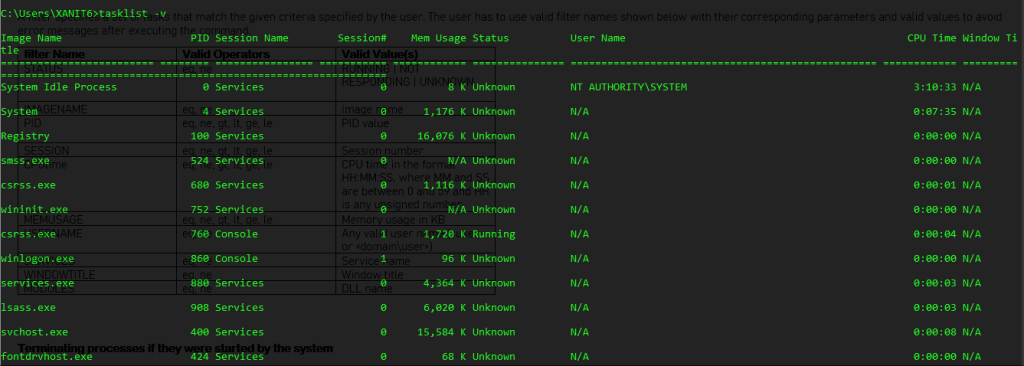
The kill tool allows a user running Microsoft windows XP and above to terminate tasks or processes using Command shell commonly known as Command Prompt(CMD). Though for one to use taskkill, you have to have understood the “tasklist” command and its parameters i.e. -v. The tasklist command shows all programs or applications currently running on the computer but with the “-v” parameter the user is able to identify the origin of the running program i.e. it includes the Image name, user Name, PID, Session Name, and program status. This is why the user has to initiate the “tasklist -v” command first before starting the “taskkill” command. Let’s get started with examples;
| TASKKILL PARAMETERS | |
| Parameter | Description |
| /s <computer> | Specifies the name or IP address of a remote computer (do not use backslashes). The default is the local computer. |
| /u <domain>\<username> | Runs the command with the account permissions of the user who is specified by <username> or by <domain>\<username>. The /u parameter can be specified only if /s is also specified. The default is the permissions of the user who is currently logged on to the computer that is issuing the command. |
| /p <password> | Specifies the password of the user account that is specified in the /u parameter. |
| /fi <filter> | Applies a filter to select a set of tasks. You can use more than one filter or use the wildcard character (*) to specify all tasks or image names. The valid filters are listed in the Filter names, operators, and values section of this article. |
| /pid <processID> | Specifies the process ID of the process to be terminated. |
| /im <imagename> | Specifies the image name of the process to be terminated. Use the wildcard character (*) to specify all image names. |
| /f | Specifies that processes be forcefully ended. This parameter is ignored for remote processes; all remote processes are forcefully ended. |
Terminating a process using its Image Name(IM) or the /im parameter
The /im parameter stands for the image name.
When one wants to close notepad in cmd using taskkill with its image name, the command is phrased as taskkill /im notepad.exe.
Terminating a process using its Process ID (PID) or the /pid parameter
The /PID parameter stands for process id.
When one wants to close notepad with it’s PID the command is initiated as taskkill /PID 1000.
NOTE:
- The PID is got after initiating the tasklist command since process IDs usually change.
- In some cases, termination signals are sent to the program but it does not close. To solve this the user has to run Commmand Prompt as Administrator and include “/f” parameter in the command indicating forced action.
INTRODUCING FILTERS IN THE TASKKILL COMMAND
A filter specifies a set of tasks that match the given criteria specified by the user. The user has to use valid filter names shown below with their corresponding parameters and valid values to avoid error messages after executing the command.
| filter Name | Valid Operators | Valid Value(s) |
| STATUS | eq, ne | RUNNING | NOT RESPONDING | UNKNOWN |
| IMAGENAME | eq, ne | Image name |
| PID | eq, ne, gt, lt, ge, le | PID value |
| SESSION | eq, ne, gt, lt, ge, le | Session number |
| CPUtime | eq, ne, gt, lt, ge, le | CPU time in the format HH:MM:SS, where MM and SS are between 0 and 59 and HH is any unsigned number |
| MEMUSAGE | eq, ne, gt, lt, ge, le | Memory usage in KB |
| USERNAME | eq, ne | Any valid user name (<user> or <domain\user>) |
| SERVICES | eq, ne | Service name |
| WINDOWTITLE | eq, ne | Window title |
| MODULES | eq, ne | DLL name |
The image below is a screenshot in command shell showing valid filter names
Terminating processes if they were started by the system
To do this, one has to use the “username” filter since they are specifying the program starter i.e. It could have been a guest user on the computer, administrator, or unidentified process (this is usually presented by N/A value). I recommend using the “im” parameter as it does not necessarily require the use of tasklist first since you use the image name which is constant i.e. The image name does not change unlike process identities which do change every time new programs start.
Examples;
- When a user wants to terminate program “xxx” if it was started by the system, the command is phrased as; taskkill /f /fi “USERNAME eq NT AUTHORITY\SYSTEM” /im xxx.exe OR Taskkill /f fi “USERNAME eq AUTHORITY\SYSTEM” /PID 0000. The two commands will do the same but keep in mind the “/f” parameter forcefully ends the program.
Terminating multiple processes with a single command
This is done by including “/” in your command after indicating a program or process to end.
Examples;
- Assuming the user wants to terminate program “MAN” with PID 4345 and program “hack” with pid 5646 in a single command. The command is phrased as; taskkill /t /f /im MAN.exe /im hack.exe OR taskkill /t /f /PID 4345 /PID 5646.
- Assuming the user wants to terminate programs starting with “v” in their image names in a single command. The command is phrased as; taskkill /f /fi “Imagename eq v*” /im *
- Assuming the user wants to terminate all processes that have process ID greater than or equal to 2000 regardless of their Image names. The command is phrased as taskkill /f /fi “PID ge 2000” /im *
Terminating programs on a remote user with credentials of another user
Assuming the user wants to terminate program “xxx” on the remote computer Server2 while using credentials for the user account Server1. The command is phrased as; taskkill /f /s Server2 /u Server1 /p 32425 /im xxx.exe
Remarks
- The WINDOWTITLE and STATUS filters aren’t supported when a remote system is specified.
- The wildcard character (*) is accepted for the */im option, only when a filter is applied.
- Providing a computer name to the hostname filter causes a shutdown, stopping all processes.
- Ending a remote process is always carried out forcefully, regardless whether the /f option is specified.
QUOTE: The greatest were once at the lowest
YOUTUBE: https://www.youtube.com/channel/UCEwplXwy7jehvG6sc3myAbw
WHATSAPP: +256705880567
 Xanitech